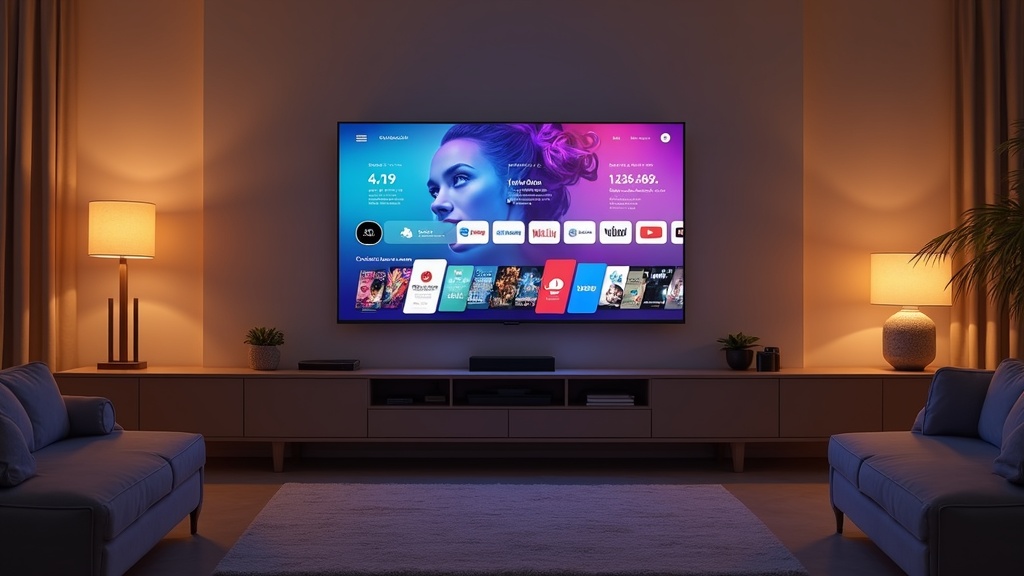
If you own a modern Samsung or LG television, you already have everything you need to enjoy IPTV without extra boxes, cables, or clutter. Setting up IPTV on your Smart TV turns the screen you already own into a gateway for live channels, on-demand libraries, and international content from around the world. But not every service delivers the same quality, and the setup process can feel confusing the first time. This guide walks you through what matters when choosing a provider and exactly how to get IPTV running on your Samsung or LG Smart TV.
Why Watch IPTV on a Smart TV?
IPTV (Internet Protocol Television) streams video over your home internet connection instead of a satellite dish or cable line. Because Samsung and LG Smart TVs run their own app platforms, you can install a compatible player app and start watching directly, no external hardware required. The result is a clean living-room experience with a proper remote, a big screen, and none of the tangled wiring that older setups demanded.
The appeal is simple: one subscription can give you access to live sports, news, entertainment, and a large on-demand catalogue, all navigable from your couch. For households that want flexibility and international variety, IPTV on a Smart TV is often the most convenient option available.
What to Look for in an IPTV Smart TV Service
Before you subscribe to anything, it helps to know what separates a dependable provider from a frustrating one. The most important factors have less to do with marketing claims and more to do with day-to-day reliability.
- Stream stability: The service should hold a steady connection during peak evening hours, not just at quiet times of day.
- Video quality: Look for HD and 4K streams where your connection and TV support them, with minimal buffering.
- App compatibility: Make sure the provider works with common Samsung and LG player apps rather than requiring obscure workarounds.
- Content variety: A good mix of live channels, on-demand movies and series, and international content matters more than any single headline number.
- Responsive support: Fast, human help when something goes wrong is worth more than a long feature list.
- Fair, transparent pricing: Clear plans and honest terms are a strong sign of a provider you can trust.
Services like Optimedia focus on exactly these fundamentals, prioritising stable streams and broad device support so that your Smart TV experience stays smooth night after night.
IPTV Smart TV for a Global Audience
One of the biggest reasons people move to IPTV is access to content from beyond their own region. Whether you have moved abroad, split your time between countries, or simply want to follow live sports and entertainment from another part of the world, a strong IPTV service brings it all into one place.
For a global audience, the value comes from breadth. Instead of juggling multiple regional subscriptions, you can watch premium channels, local news, and international content through a single interface on your Samsung or LG TV. Look for a provider with multilingual catalogues and servers positioned to serve viewers reliably no matter where they are.
How to Set Up IPTV on Samsung and LG Smart TVs
The exact steps vary slightly between manufacturers and app choices, but the overall process is straightforward. Once your subscription is active, you can usually be watching within a few minutes.
Setting Up on a Samsung Smart TV
- Open the Samsung app store (Smart Hub) from your home screen.
- Search for a compatible IPTV player app and install it.
- Launch the app and note the device ID or MAC address it displays.
- Enter your subscription details, or upload the playlist link your provider sent you.
- Allow the channel list to load, then start streaming.
Setting Up on an LG Smart TV
- Open the LG Content Store from the home menu.
- Find and install a supported IPTV player app.
- Open the app and locate the device identifier it shows on screen.
- Add your provider's playlist or login credentials as instructed.
- Wait for the guide to populate, and you are ready to watch.
A reputable provider will send you clear, step-by-step activation instructions after you sign up. If you get stuck, that is where responsive support proves its worth. You can get started with Optimedia's plans and follow the guided setup to have your Samsung or LG TV ready in minutes.
Honest Pros and Considerations
IPTV on a Smart TV is genuinely convenient, but it is worth going in with realistic expectations.
The Advantages
- No extra hardware needed on most modern Samsung and LG models.
- A single subscription covering live channels, on-demand libraries, and international content.
- Big-screen viewing with your existing TV remote.
- Flexibility to watch across regions and languages.
Things to Keep in Mind
- Quality depends heavily on your home internet speed and stability.
- Older TV models may have limited app support and need a small external streaming device.
- A wired Ethernet connection often outperforms Wi-Fi for high-resolution streams.
- Choosing an established, well-reviewed provider makes a real difference to reliability.
Frequently Asked Questions
Do I need any extra equipment for IPTV on my Smart TV?
In most cases, no. If your Samsung or LG TV is a recent model with app support, you only need a stable internet connection and a compatible player app. Very old models may benefit from an inexpensive external streaming device.
What internet speed do I need for IPTV on a Smart TV?
A steady connection is more important than a very fast one. HD streaming is comfortable on modest broadband, while 4K content benefits from a faster, wired connection. If you notice buffering, a wired Ethernet link usually helps more than anything else.
Will IPTV work on both Samsung and LG TVs?
Yes. Both platforms support popular IPTV player apps, and the setup steps are broadly similar. A good provider will supply activation instructions tailored to your specific device.
How quickly can I start watching after subscribing?
Usually within a few minutes. Once your subscription is active and you have installed a player app, you simply enter your details or playlist link and let the channel guide load.
Final Thoughts
Setting up IPTV on a Samsung or LG Smart TV is one of the easiest ways to unlock live channels, on-demand entertainment, and international content on the screen you already own. Focus on a provider that prioritises stream stability, honest pricing, and strong support, and the rest falls into place quickly. If you are ready to try it, a reliable option like Optimedia makes getting your Smart TV up and running simple.
Ready to start streaming? Browse Optimedia IPTV plans and get set up on your devices in minutes - no contracts, instant activation.