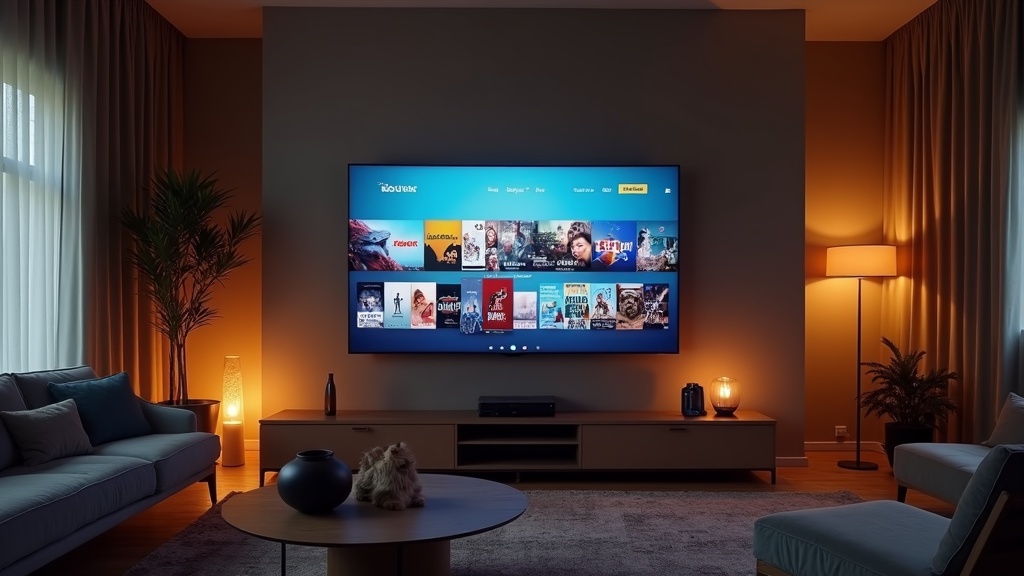
We'll help you unlock a wider world of entertainment on your Samsung or LG smart TV, covering how to set up IPTV with ease and clarity. Our team has put together a comprehensive guide to ensure you get the most out of your IPTV service. Choosing the right streaming option can be overwhelming, but our goal is to empower you to make informed decisions without compromising on quality. When it comes to setting up IPTV on your Samsung or LG smart TV, it's essential to follow the right steps to enjoy seamless streaming. With our step-by-step guide, you'll be able to access a vast library of live sports, premium channels, and major streaming apps, bringing you closer to your favorite shows and events than ever before.
What You Need Before You Start
Whether you're a seasoned IPTV user or just starting out, it's crucial to ensure you have the necessary prerequisites in place before diving in. Here's what you'll need:
- A compatible Samsung or LG smart TV
- A reputable IPTV provider (make sure to research and choose a licensed service)
- A stable internet connection (at least 10 Mbps for HD streaming)
- The IPTV app available for your TV's operating system
- A subscription to your chosen IPTV service
Before proceeding, take a moment to verify that your TV is compatible with the IPTV service of your choice, and that you have a stable internet connection to prevent any potential issues during setup.
Step-by-Step Guide
The process of setting up IPTV on your Samsung or LG smart TV is relatively straightforward. Here's a step-by-step guide to help you get started:
- Launch the IPTV app from your TV's app store or home screen.
- Sign in to your IPTV account using your credentials (email and password).
- From the IPTV menu, select "Settings" and then navigate to the "Connection" or "Internet" section.
- Configure the automatic detection settings, selecting the correct network type (Wi-Fi or Ethernet).
- Enter your IPTV server's address, which can usually be found in your account information or documentation provided by your IPTV service.
- Save your changes and restart the IPTV app.
- Once you're connected, explore the various channels and content categories to discover your new favorite shows and live events.
Some IPTV services may require you to enter a specific server address or configure additional settings; consult your IPTV provider's documentation for any specific requirements. With these steps completed, you're ready to enjoy seamless IPTV streaming on your Samsung or LG smart TV.
Recommended Settings and Requirements
For optimal performance, consider the following recommended settings and requirements:
| Setting | Value | Why |
|---|---|---|
| Internet Connection Speed | 15-20 Mbps for HD (1080p) streaming | Ensures a smooth viewing experience |
| Internet Connection Speed (4K) | 35-50 Mbps for Ultra HD (4K) streaming | Delivers high-quality 4K video playback |
| Buffer Size | Set to 2-5 seconds for optimal streaming | Reduces buffering and improves overall performance |
| Auto-Refresh | Set to on for seamless channel switching | Ensures minimal downtime and a smooth viewing experience |
| Video Quality | Set to "High" or "Maximum" for best picture quality | Provides the highest possible video quality |
Our team firmly believes in providing clear guidance and reliable information to help our readers make the most of their IPTV service. With these essential settings and requirements in mind, you'll be well on your way to an unforgettable IPTV experience on your Samsung or LG smart TV.
Troubleshooting Common Problems
When issues arise, it's essential to identify the root cause to resolve the problem efficiently. Here's a compiled list of common issues, their likely causes, and fixes: | Symptom | Likely Cause | Fix | | --- | --- | --- | | IPTV app crashes frequently | Insufficient IPTV server capacity or network congestion | Restart your device, check for software updates, and ensure your internet connection is stable | | No sound or low volume | Audio settings not configured correctly or device connectivity issues | Check your device's audio settings and ensure all cables are securely connected | | Buffering and lag | Insufficient bandwidth or poor network quality | Check your internet speed and consider upgrading to a faster plan or switching to a reputable IPTV subscription in Canada | | Unable to connect to IPTV server | Incorrect server address or login credentials | Verify your server address and login credentials, and ensure you've downloaded the correct configuration file | | Application unable to update | Insufficient storage space or outdated device software | Check your device's storage and update your device software to the latest version |
How to Prevent This Going Forward
- Regularly update your device software and app versions
- Ensure your internet connection is stable and meets the recommended requirements
- Clear cache and data regularly to prevent storage buildup
- Monitor your IPTV subscription's server status for any potential issues
- Avoid overloading your network with multiple devices and ensure a stable power supply
To prevent issues from arising, we recommend staying informed about the latest IPTV technology advancements and device updates. Our team has compiled a comprehensive guide on how to set up IPTV on any device, which includes step-by-step instructions and troubleshooting tips.
When It's Time to Switch Providers
At some point, you may need to switch IPTV providers due to poor service quality, streaming issues, or dissatisfaction with the content offerings. When this happens, take your time to research and carefully evaluate potential providers. This includes ensuring they offer a reliable IoT device setup experience, consistent live streaming, and compatibility with popular devices. Consider factor IPTV for Samsung & LG Smart TVs carefully when evaluating potential providers, as each device has unique setup requirements. Our team also explores alternative methods for streaming in other devices, such as iPhone and iPad (iOS) models. By finding the right provider that suits your needs, you can enjoy a seamless IPTV experience.
The Bottom Line
The Bottom Line
Our goal as the senior content editor for Optimedia is to guide you through the process of setting up IPTV on your Samsung and LG Smart TVs, ensuring a seamless and enjoyable viewing experience. By following the steps outlined in this guide and being aware of common issues, you can: Enjoy a superior IPTV experience with high-quality live streaming, robust device compatibility, and comprehensive troubleshooting support Whether you're a seasoned IPTV user or just starting out, we recommend prioritizing your viewing experience by selecting a reputable IPTV provider, such as the best IPTV subscription in Canada, and following our guides on IPTV for Samsung & LG Smart TVs and how to set up IPTV on iPhone and iPad (iOS) models.Frequently Asked Questions
What are the minimum requirements for IPTV setup?
Our IPTV services typically require a minimum 5 Mbps internet speed and a compatible device running the latest software. We recommend checking your internet speed and device requirements before signing up for an IPTV subscription.
Can I use IPTV on multiple devices at once?
Yes, our IPTV services allow for simultaneous streaming on multiple devices, including Smart TVs, smartphones, and tablets. However, please note that excessive network usage may cause buffering or lag, so we recommend optimizing your network for IPTV streaming.
Are my viewing habits tracked or shared?
No, our IPTV services prioritize user anonymity and do not collect or share viewing habits with third-party services. We take data protection and user privacy seriously, ensuring a secure and trustworthy streaming experience.
Can I change my IPTV provider at any time?
Can I change my IPTV provider at any time?
Yes, if you decide to switch IPTV providers, you can simply cancel your current subscription and sign up with a new provider. Our comprehensive setup guide applies to most popular IPTV services, so you can easily transition to a new provider without worrying about setup complexities.
How do I reset my IPTV subscription if I forget my login credentials?
Don't worry if you forget your login credentials - our team is here to help. If you've forgotten your credentials, simply navigate to the IPTV app settings, select "Help" or "Troubleshooting," and follow the on-screen instructions to reset your subscription and retrieve your login details.